
How to Transcribe Facebook Video to Text Easily
Hey there! If you’ve ever watched an amazing Facebook video—full of insights, a killer tutorial, or a hilarious skit—and thought, “I wish I could grab all those words,” then you’re in the right place.
I’ve been there too, endlessly scrolling through my feed, missing key points because I couldn’t rewind or simply read the content. It’s frustrating, right? You know the value is in there, but it feels just out of reach.
That’s where learning to transcribe video to text comes in. It’s a total game-changer, transforming passive viewing into active content creation.
I’m excited to walk you through my complete, battle-tested process. Think of this not just as a tutorial, but as your new content superpower.
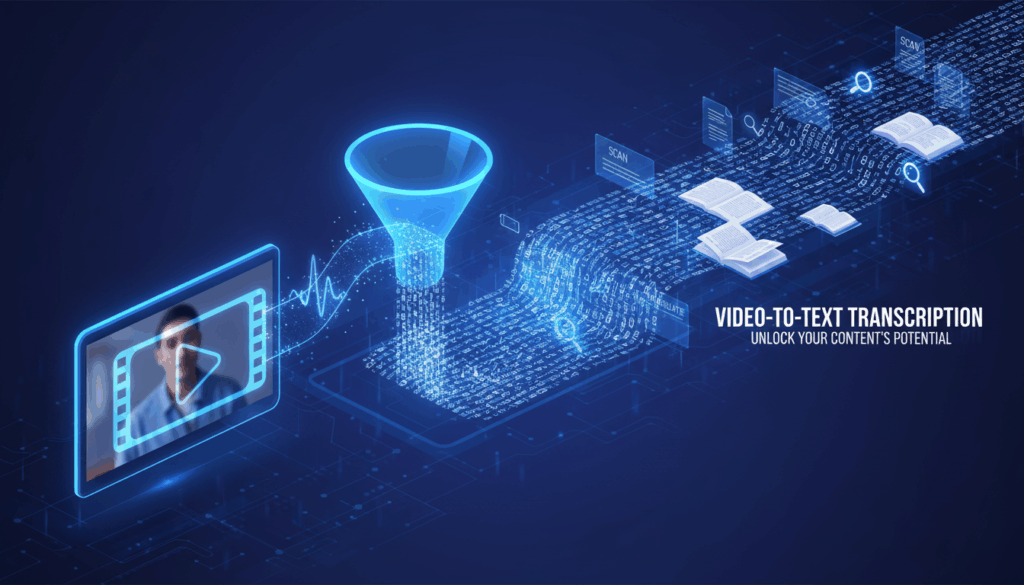
What Is Video-to-Text Transcription?
At its core, it's exactly what it sounds like: you convert the spoken words from a video file into a written, textual document.
But let me tell you, it's so much more than a literal audio-to-text swap. It's about unlocking the dense, valuable content trapped in an audio stream and giving it a permanent, flexible form. Think of it as creating a searchable, editable text version of your video's narrative.
This isn’t just about subtitles for viewers; it’s about creating a foundational asset for you, the creator. Once you transcribe video to text, your content transforms from a linear experience into a multi-dimensional resource.
You can scan it, quote it, translate it, and reshape it in minutes.
A Must-Have for Creators
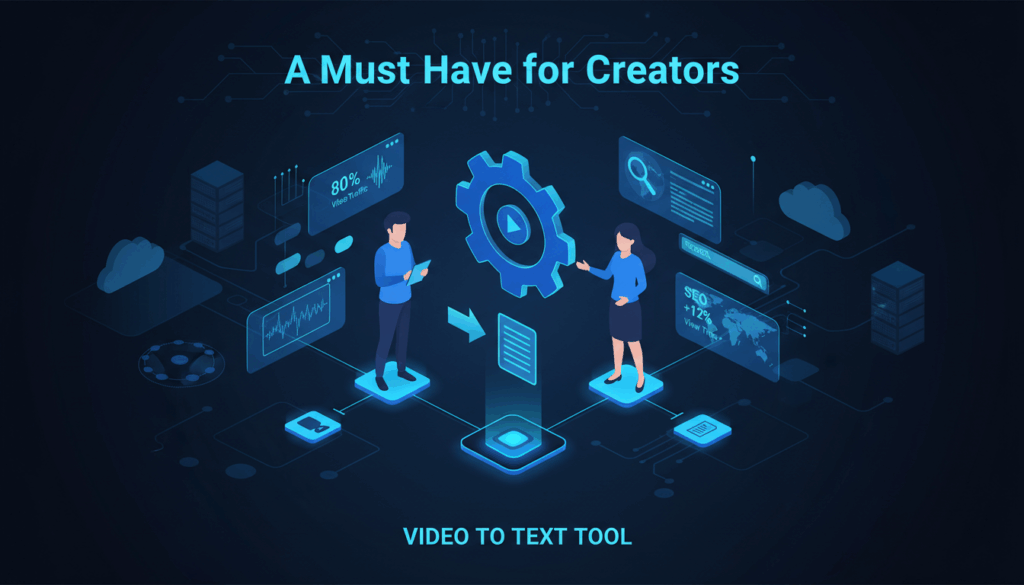
Remember all those predictions years ago that video would dominate internet traffic? Well, the future arrived. Cisco reports that video already makes up over 80% of all consumer internet traffic. Video is unquestionably king.
But here’s the secret: text is the king’s most trusted scribe, archivist, and translator. To fully harness this power, you need to master how to transcribe video to text.
As a creator or marketer, you need both to rule your domain effectively. Why? First, text versions seriously boost your SEO.
Search engines like Google can’t watch your videos (yet), but they can absolutely crawl and rank the text you provide once you transcribe video to text. Secondly, it’s a major accessibility play.
Providing a transcript or captions makes your content inclusive for deaf or hard-of-hearing audiences, non-native speakers, and anyone in a sound-off environment. It’s also the ultimate raw material for repurposing. A study by PLYMedia found that captions can increase video view time by over 12%.
If you're not actively looking for a video to text tool to effectively transcribe video to text, you're leaving significant reach, engagement, and content value on the table.
Common Use Cases You’ll Love
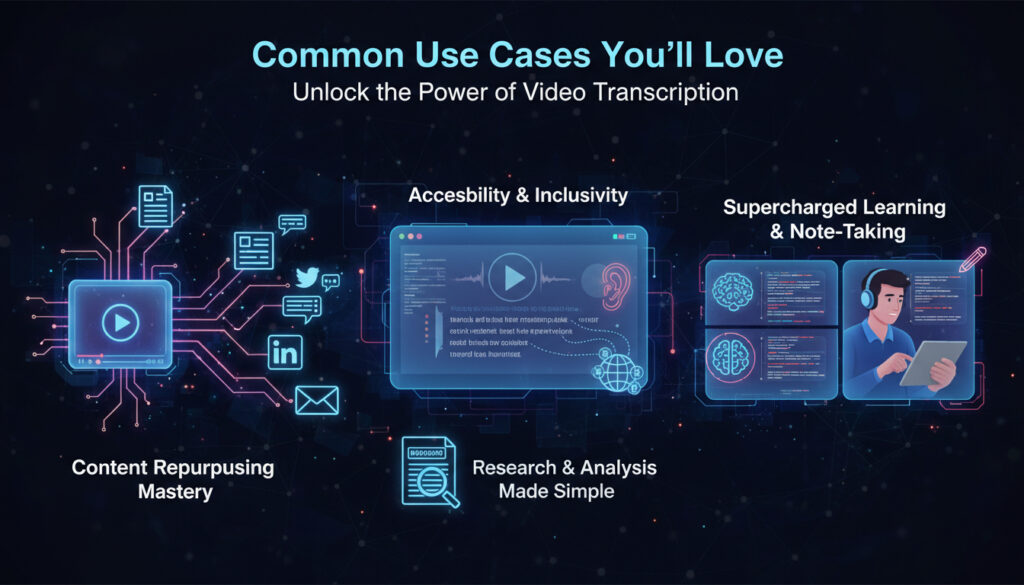
Let’s get concrete. Once you start the video transcription process and learn to transcribe video to text, you’ll find uses everywhere:
- Content Repurposing Mastery: This is the big one. A single 15-minute Facebook Live can be mined for a blog post, a series of Twitter threads, compelling LinkedIn articles, and newsletter snippets. The core work—to transcribe video to text—is done; you just reassemble the pieces.
- Accessibility & Inclusivity: Adding accurate captions isn’t just good practice—it’s often a legal requirement for certain organizations. The key is to accurately transcribe video to text first. It opens your content to a wider audience and, as a bonus, boosts SEO and watch time as mentioned.
- Research & Analysis Made Simple: Need to find that one brilliant quote from a 60-minute interview? Instead of scrubbing through the timeline for hours, just search your transcript document. The ability to transcribe video to text is a game-changer for journalists, students, and analysts.
- Supercharged Learning & Note-Taking: Watching an educational video? Follow along with the transcript, highlighting key takeaways as you go. You create perfect study notes without pausing every two seconds.
Your Step-by-Step Tutorial
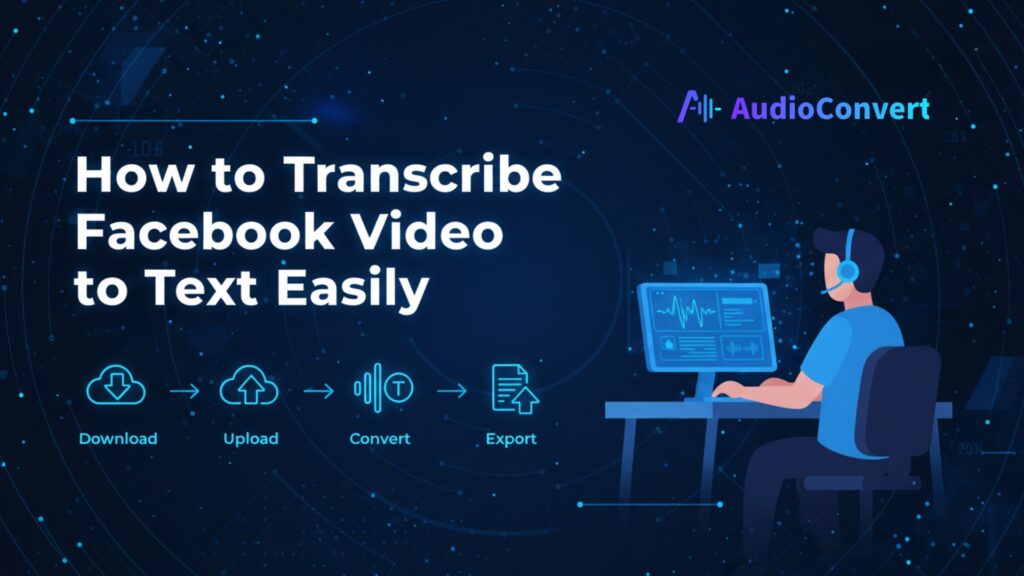
Alright, let’s get practical. Here’s my tried-and-tested workflow to transcribe video to text, going from a Facebook video to a polished, ready-to-use transcript. Ready to start?
⬇️ Step 1: Download the Video
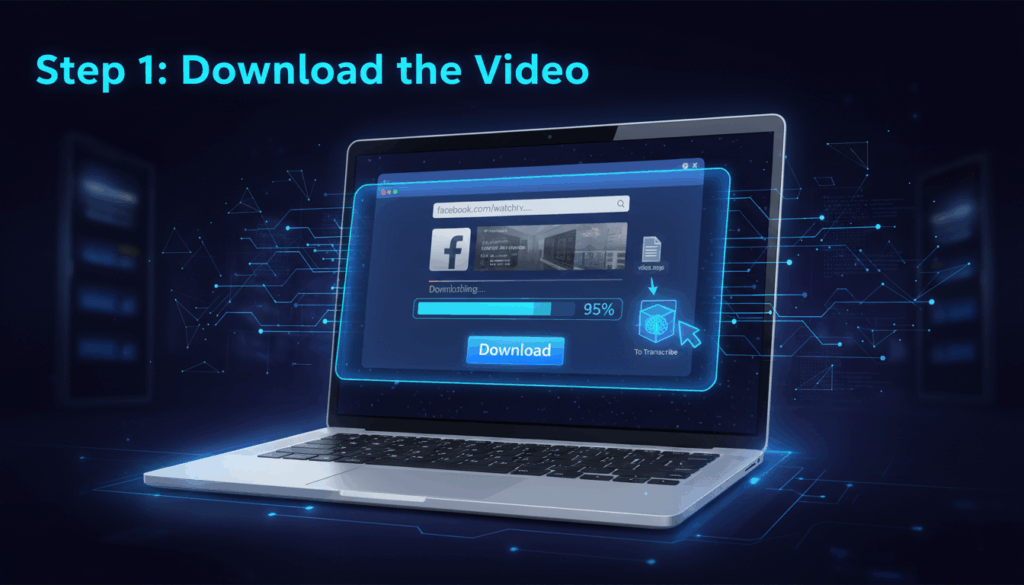
First, you need the video file locally on your device. Facebook, for obvious reasons, doesn’t make this straightforward with a handy Download button for every video.
My go-to method is using a reliable, reputable online video downloader. The process is simple: navigate to the Facebook video, copy its URL directly from your browser’s address bar, and paste it into the downloader’s input field.
A crucial note here: Always respect copyright and terms of service. Only download videos you own, have explicit permission to use, or that are available under a public license.
Once the download is complete (usually as an .MP4 or .MOV file), you have an offline copy ready for the next stage.
I recommend creating a dedicated folder on your desktop called “To Transcribe” to keep this process organized.
⬆️Step 2: Upload to a Transcription Tool
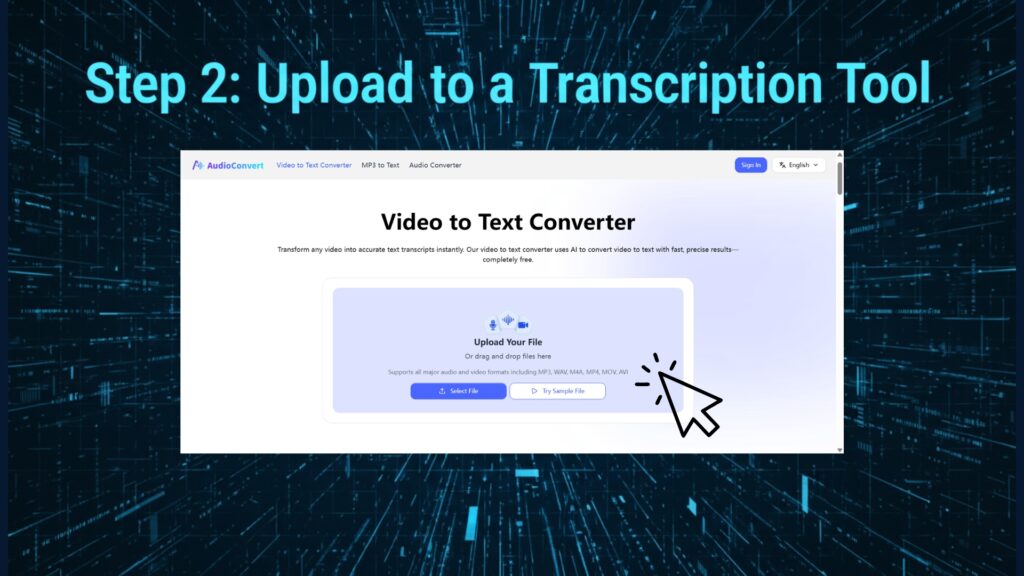
This is where the magic happens to transcribe video to text, and where choosing the right tool makes all the difference. For this guide, I’m using AudioConvert as our example because its balance of simplicity and power consistently impresses me. The process to transcribe video to text is blissfully simple.
Navigate to the AudioConvert website and find the prominent Upload button. Drag and drop your freshly downloaded video file directly into the browser window. Next, you’ll select your video’s primary language from a comprehensive list—this significantly improves accuracy. AudioConvert also offers smart features like automatic speaker identification, which I always enable for interviews or multi-person dialogues.
Once your settings are configured, you simply hit the bright Start Transcription button. Now, take a well-deserved break, grab a coffee, and let the advanced AI work its analytical magic in the background.
📝Step 3: Export and Polish the Text
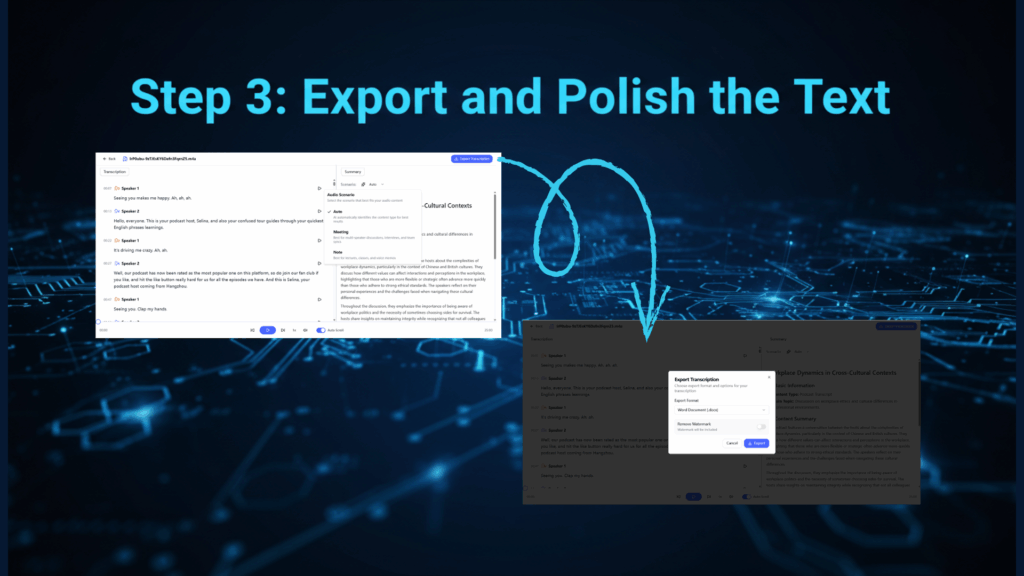
In just a few minutes (even for longer videos), you’ll have a complete draft transcript waiting — the first tangible result of your effort to transcribe video to text. AudioConvert features a visually appealing interface, typically displaying transcribed text alongside AI summaries side-by-side. You can freely switch models to customize your summary content.
The page also allows video playback for content verification. Your first action here should be to export your raw material. You’ll typically have a choice of formats: plain text (.TXT) for simplicity, a Word document (.DOCX) for heavy editing, a PDF for sharing, or specialized subtitle files (.SRT/.VTT) for your video to text workflow once you transcribe video to text. I almost always choose .DOCX.
Now, here’s the step that separates good transcripts from great ones: the human polish. Open the file and read it alongside listening to the video again, especially for complex sections. AI is brilliant, but it can stumble on strong accents, niche jargon, or homophones (e.g., “there” vs. “their”). A quick, attentive proofread ensures 99.9%+ accuracy.
Use your word processor’s Find & Replace function to swiftly clean up common filler words like “um,” “ah,” or “you know” if you want a cleaner read.
⚙️Step 4: Integrate into Your Workflow
The polished transcript is your content gold mine. Don’t let it sit idle! This is where strategy kicks in. Paste the full transcript into the description box of your YouTube upload to supercharge its searchability.
Break it into logical sections with headers to form the skeleton of a LinkedIn article or blog post.
Extract powerful one-liner quotes for Instagram carousels or Twitter graphics. By completing the initial act to transcribe video to text, you’ve essentially done the heavy lifting for a dozen other content pieces. It’s the ultimate force multiplier for your creative output.
How EasyComment Users Leverage Transcripts
For users of community management and social engagement platforms like EasyComment, mastering video transcription isn’t just helpful—it’s a strategic accelerator. Here’s how the savvy pros in the EasyComment community leverage this, especially once they learn to transcribe video to text.
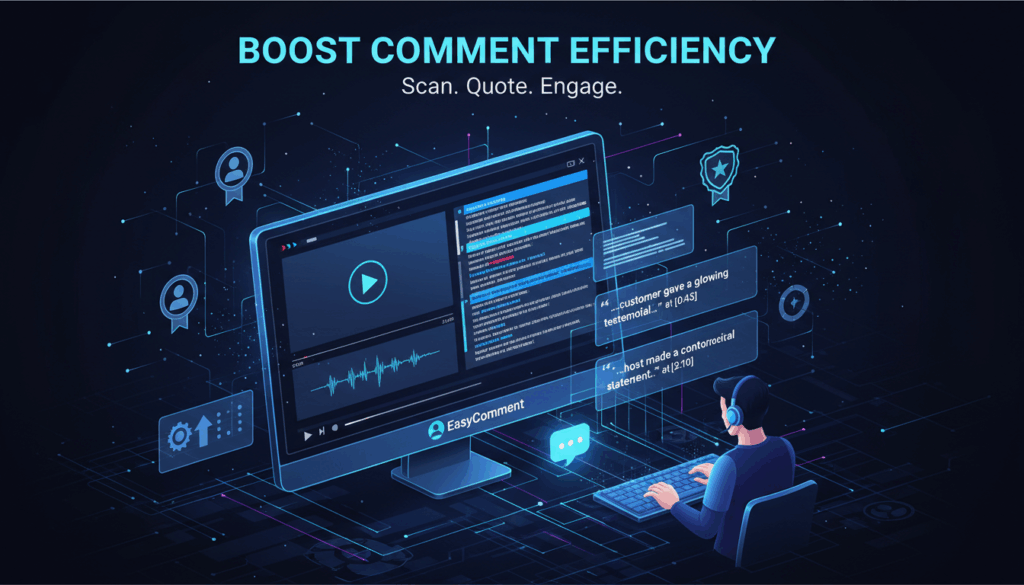
🚀Boost Comment Efficiency
Reading is exponentially faster than watching and listening. When a new video is generating buzz, you need to engage—fast. Instead of rewatching the entire video to formulate a thoughtful comment, simply scan the transcript generated after you transcribe video to text. You can pinpoint the exact moment a customer gave a glowing testimonial or where the host made a controversial statement.
Your responses become precise, relevant, and deeply personal because you’re quoting the content directly. This builds incredible community trust and loyalty, turning passive viewers into active brand advocates.
⚡Create Social Content Fast
You need to promote that fantastic video across all your social channels. Don’t just post the link with a generic “Watch my new video!” plea. Use the video transcription! Pull out the three most compelling sentences.
Use a tool like Canva to turn one into a stunning graphic for Instagram Stories, another into a text post for Twitter, and the third into a hook for your Pinterest pin.
You can create a coordinated, multi-platform promotional blitz in under an hour, all driven by the authoritative text from your video.
🔄 Repurpose for Multiple Channels
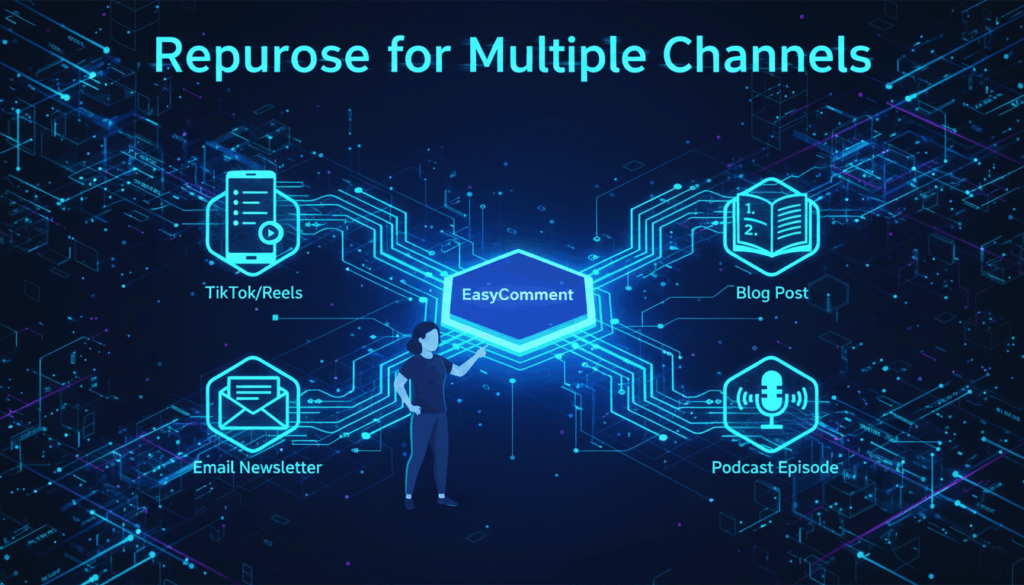
This is my absolute favorite part of the process. A single 20-minute tutorial transcript isn’t just one asset; it’s a content springboard.
● It becomes the step-by-step guide for a blog post.
● Key segments are re-edited into vertical video scripts for TikTok or Reels.
● The main points are extracted as bullet points for your weekly email newsletter.
● The entire Q&A section can fuel talking points for a follow-up podcast episode.
For a team using EasyComment to manage and unify conversations across platforms, having this central text hub—created as you transcribe video to text—ensures messaging is consistent and every piece of content drives back to your core narrative.
Solving Real Problems with AudioConvert
Many video transcription tools exist, but I consistently return to AudioConvert when I need to reliably transcribe video to text.
It’s designed to solve the actual pain points we face as creators, not just perform a basic function. Its Auto-Summarize feature is a legitimate lifesaver when you’re short on time. With one click on the Summarize button, AudioConvert’s AI generates a concise overview and extracts key takeaways.
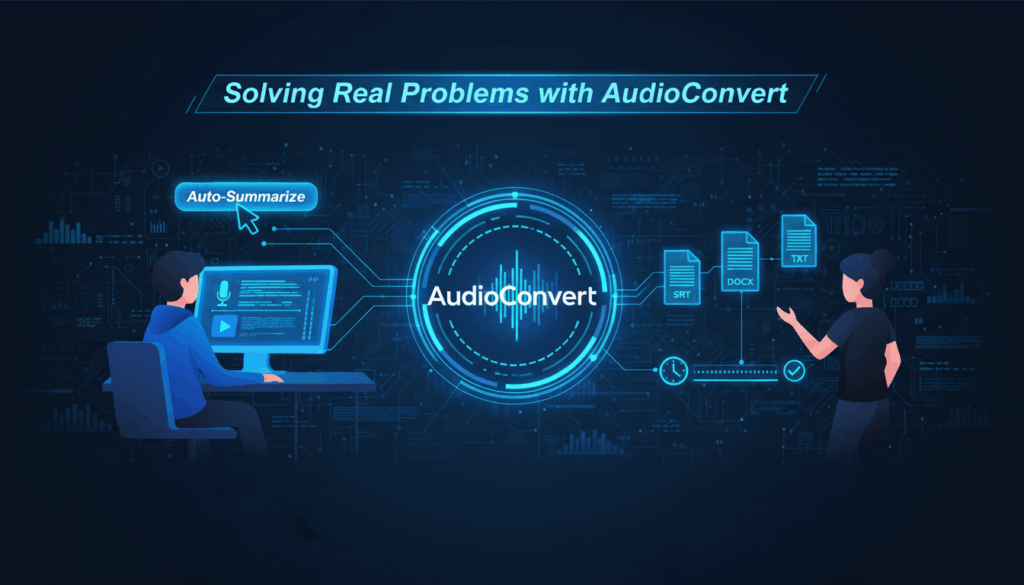
This is perfect for creating episode show notes, executive summaries, or meeting minutes in seconds, especially when you need to transcribe video to text quickly.
I’ve found its intelligent transcription engine to have notably high accuracy, even with decent-but-not-perfect audio quality and varied accents. This core reliability means I spend less time on tedious manual corrections and more time on creative tasks.
Furthermore, the flexibility to export in multiple, ready-to-use formats (SRT for subtitles, DOCX for editing, TXT for plain text) means it fits seamlessly into any downstream workflow, whether you’re a video editor, writer, or social media manager.
Why AudioConvert Earns Its Spot in My Toolkit
You might be wondering, “With so many options, why champion this specific tool?” After extensive comparison and real-world use, here’s what solidifies AudioConvert as my go-to recommendation.
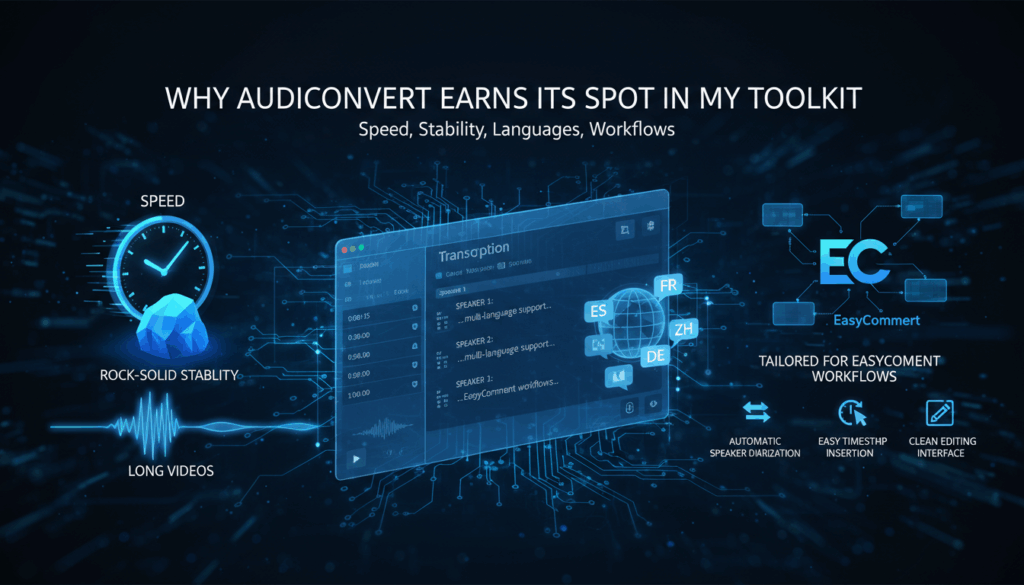
🛡️Speed and Rock-Solid Stability
Its speed and rock-solid stability are fundamental. In the content world, time is literally money. AudioConvert processes files swiftly.
More importantly, it’s incredibly stable—no frustrating browser crashes mid-upload of a 90-minute webinar, a nightmare I’ve experienced with other web-based tools.
🌐 Long Videos & Multiple Languages
The platform supports long videos and a plethora of languages without breaking a sweat.
Whether it’s a 30-second clip or a two-hour lecture, it handles the task.
For global creators and marketers, the multi-language support is a huge asset, allowing you to accurately transcribe video to text from Spanish, French, Mandarin, German, and dozens more, breaking down language barriers in your content strategy.
🎯Tailored for EasyComment Users' Workflows
Finally, it feels tailored for modern creators and EasyComment workflows. This isn’t a generic, one-size-fits-all utility.
Thoughtful features like automatic speaker diarization, easy timestamp insertion, and a clean editing interface demonstrate that it was built with content professionals, marketers, and community managers in mind.
It integrates perfectly into the EasyComment ethos of fostering efficient, scalable, and meaningful engagement.
Conclusion
So, let’s circle back. Why does learning to transcribe video to text fundamentally supercharge your efficiency?
It transforms your content from a single-use, ephemeral asset into a multi-format, evergreen, and searchable resource library.
It democratizes your content through enhanced accessibility, supercharges your discoverability via SEO, and fuels endless cycles of creativity.
In our current digital age, where video commands attention but text remains the bedrock of search, reference, and deep understanding, bridging these two worlds isn’t just a smart tactic—it’s an essential strategy for sustainable growth.
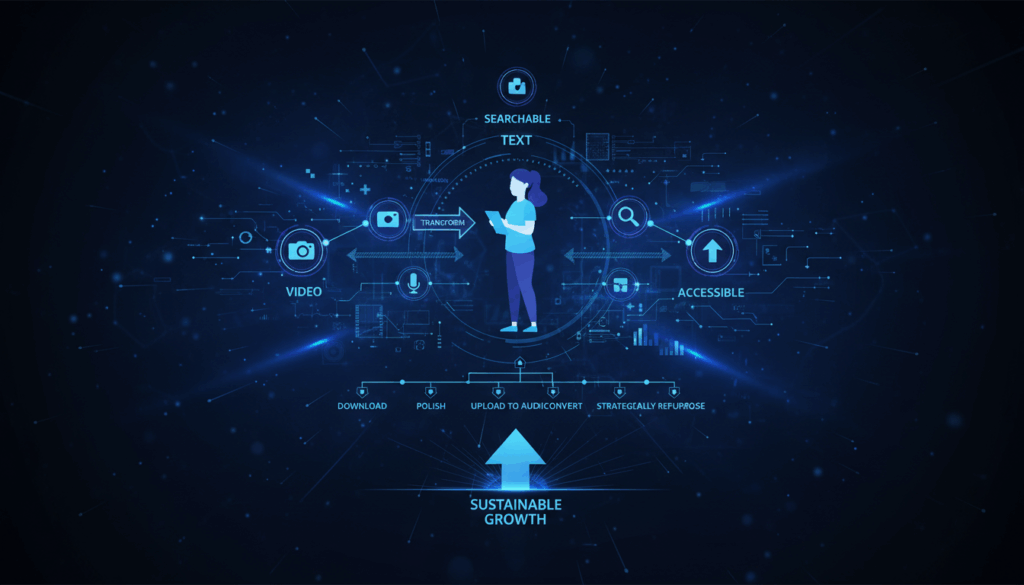
The workflow I’ve detailed—download, upload to AudioConvert, polish, and strategically repurpose—is the most streamlined and effective path I’ve discovered. It demystifies the video to text converter process and delivers tangible, time-saving results almost immediately.
I strongly encourage you to take this tutorial and apply it to your very next Facebook video. Experience firsthand how much time you reclaim and how a floodgate of new content ideas opens up.
Once you make it a core habit to transcribe video to text, you’ll look back and wonder how you ever managed your content without it.
Happy transcribing!